
Property Grid
Summary
Section titled “Summary”This application view displays properties in a grid format, allowing you to view and edit properties of the selected object in a structured way
Description
Section titled “Description”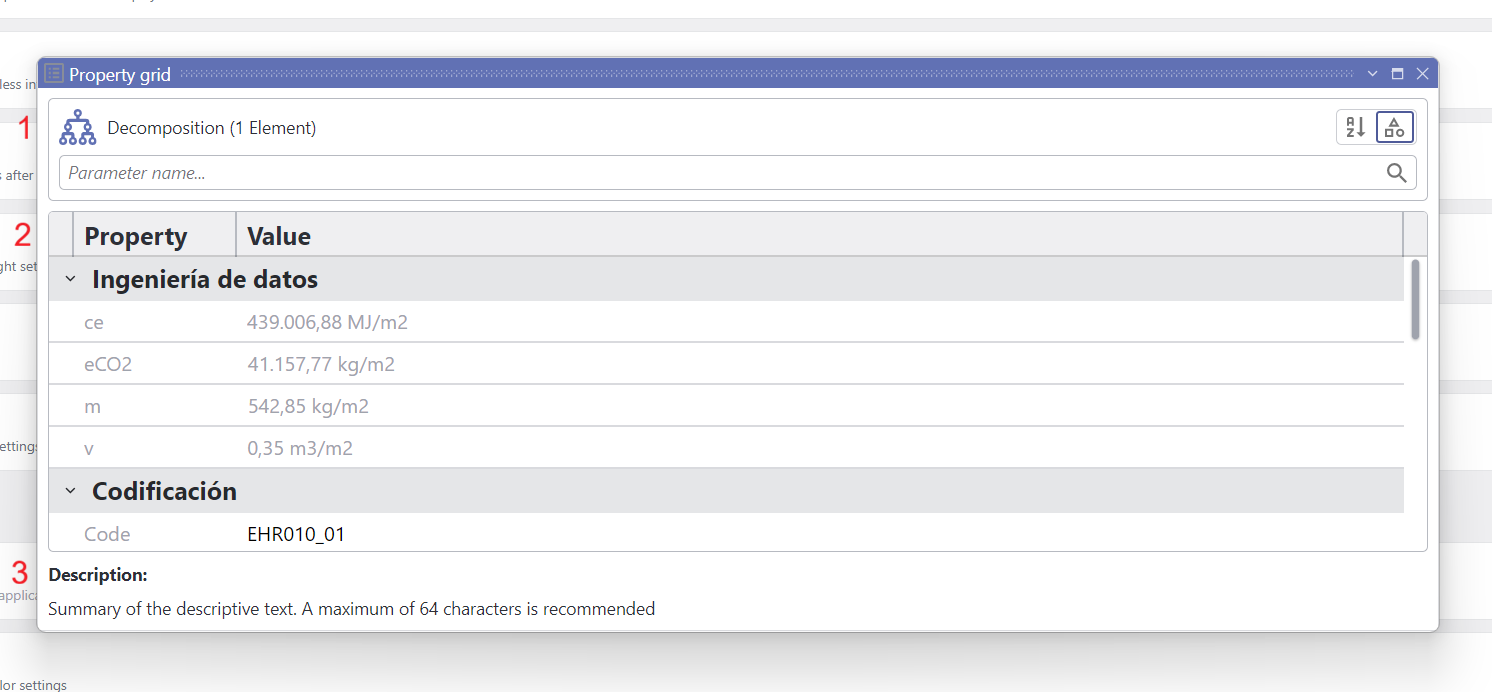
Property Grid application view in floating state
The control is set in three rows:
- A header (1) providing information about selected object types and number, a toggle switch for grouping of properties alphabetically or by category, and a search box to filter any propery in the grid bellow
- A grid (2) displaying properties of the selected object, which can be edited by clicking on the value and changing it
- A footer (3) providing a description of the selected property or parameter
Be aware that, when selecting multiple objects, the control will only show common properties (or parameters) shared across them all, and <Multiple values> text if values differ
Whenever a property references another object, a link will be provided  to navigate to that object
In such case, the control will react to show up navigated object properties and header will also show a tip (1) to navigate back:
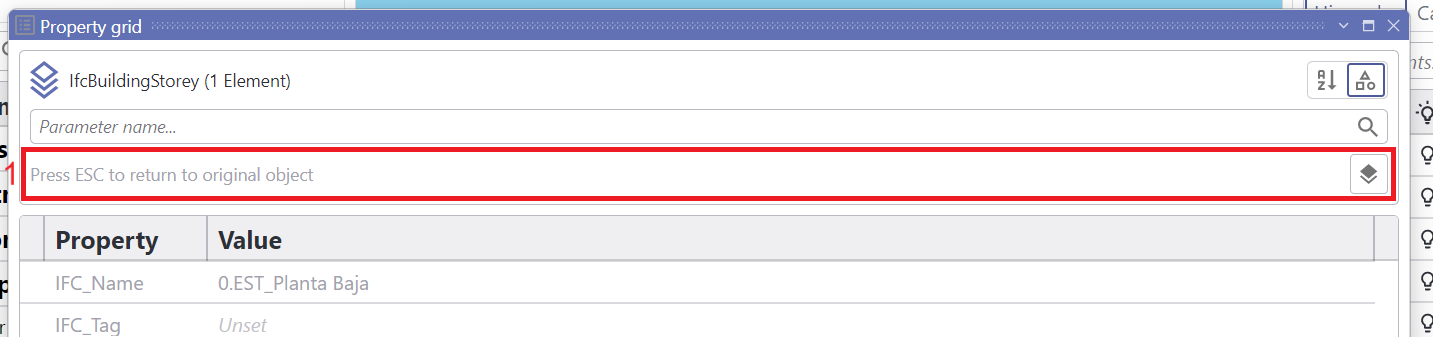
Nested object Property Grid header
By clicking on any datagrid header, you can quickily sort properties by name or value, as explained in sorting
Context Menu
Section titled “Context Menu”| Clipboard | Action |
|---|---|
| Copy property | Copy the name of the property/parameter to clipboard |
| Copy value | Copy the value of the property/parameter to clipboard |
| Add column | Action |
|---|---|
| Take-Offs | Add current parameter as take-offs custom column |
| Filters | Add current parameter as filters validation custom column |
| Rules | Add current parameter as rules validation custom column |