
OPEN Tab
Summary
Section titled “Summary”This tab contains a quick browser to locate and open desired DASSIT™ file
Description
Section titled “Description”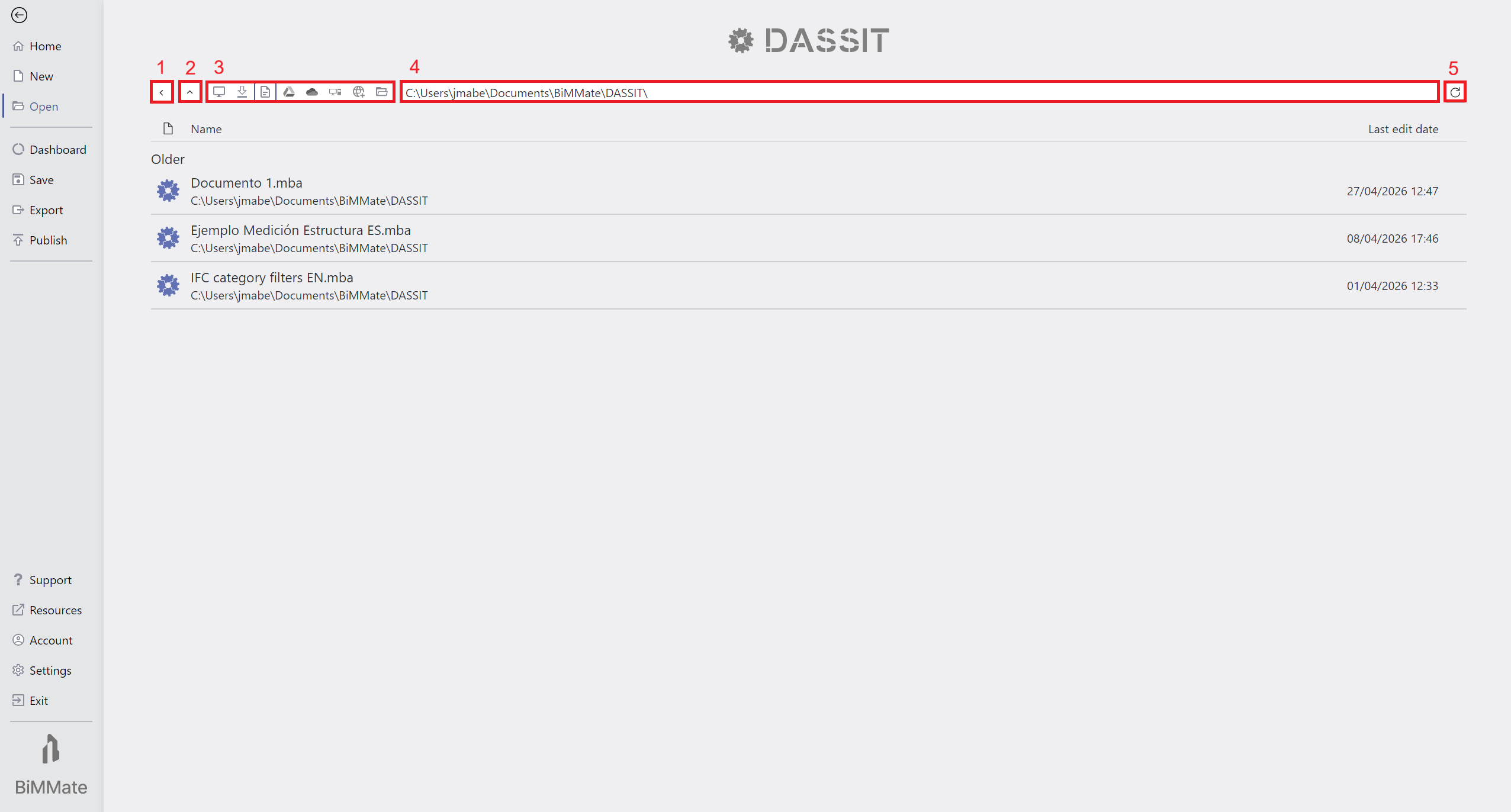
Backstage OPEN Tab
On top of the page there is a header that allows for:
- Navigate back (1), to previously navigated folder
- Navigate up (2), to current folder’s parent
- Select one of the default locations (3), such as:
- Current user’s Desktop Folder
- Current user’s Downloads Folder
- Current user’s Documents Folder
- Current user’s Google Drive folder (only available if Google Drive is installed)
- Current user’s OneDrive folder (only available if OneDrive is installed)
- Current machine root
- Open Operating’s System native browser
- Use searchbox (4) to type the desired folder to retrieve files from
- Refresh (5) displayed items in current folder
Below, the list of available files that are DASSIT™ compatible (.BC3 and .MBA), sort by last accessed date
On the right of each file, there is the date when it was accessed the last time, and a pin
icon  to lock it to the top of
the list
to lock it to the top of
the list
By single clicking on a file, DASSIT™ will open it and close the Backstage
Context Menu
Section titled “Context Menu”The UI control does not contain a context menu