
Backstage UI control
Summary
Section titled “Summary”The backstage is usually the first UI control that shows up upon DASSIT™ start
Description
Section titled “Description”Depending on the currently open documents, this UI control may vary:
- When no open documents, usually on app started, there are fewer and bigger commands on the left panel
- When at least one open document, usually during a DASSIT™ session, there are more smaller commands on the left
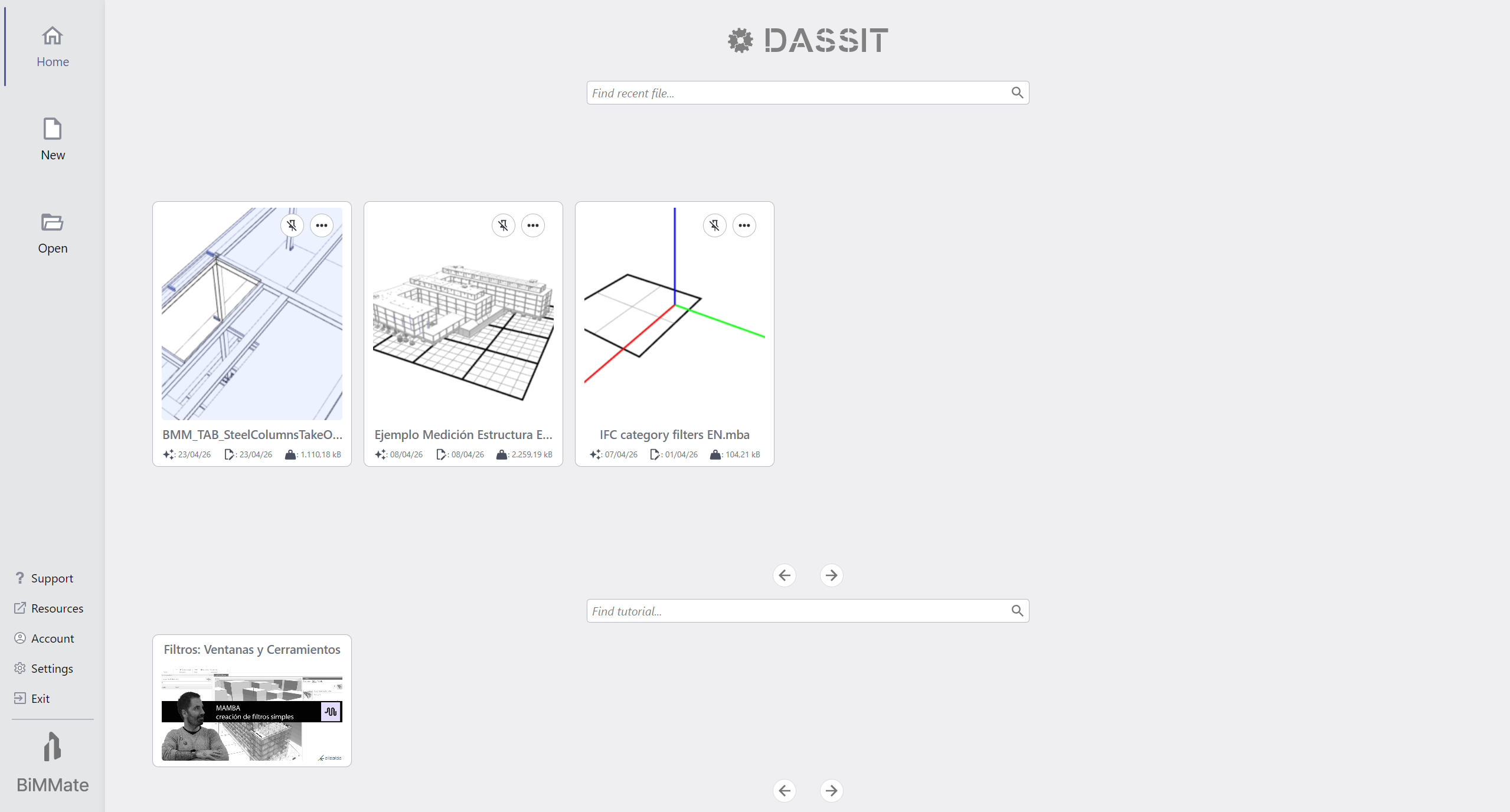
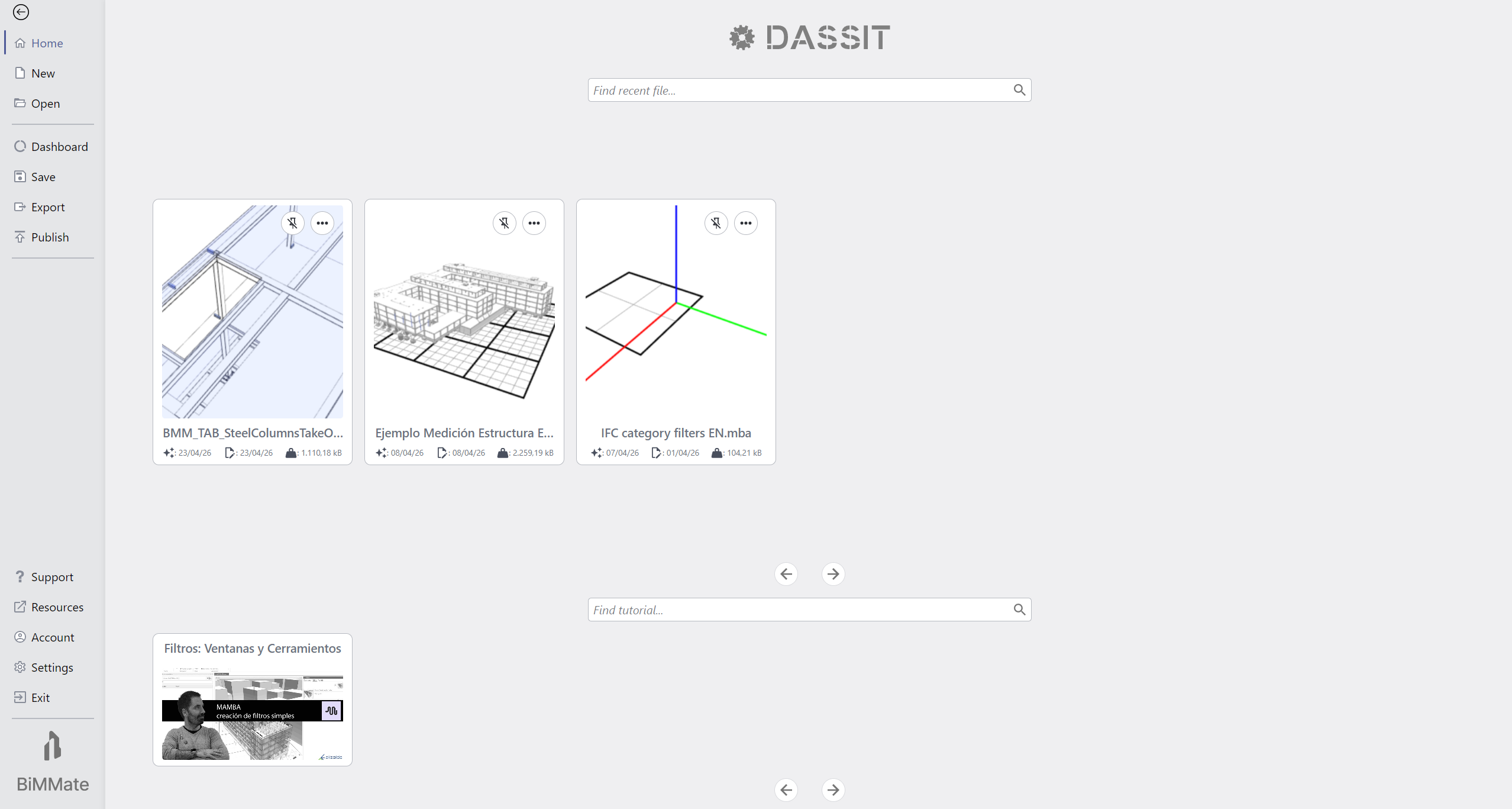
Backstage UI control in both open documents state
The backstage is split in two parts:
- On the left, the commands panel, where you can select the tab to interact with
- On the right, the content of the selected tab
These are the available commands in DASSIT™:
| Command | Description |
|---|---|
| Back | When there is at least one open document, a back button shows up on the top of the left commands panel, allowing you to close backstage and return to workspace |
| Home | Home Tab shows recently open documents and available video tutorials |
| New | New Tab shows the available templates to start a new document from |
| Open | Open Tab allows to open any local or remote file |
| Dashboard | Dashboard Tab shows up a nice graph summary of any open document |
| Save | Save Tab allows to save any of the current open documents |
| Export | Export Tab allows to export any open document to a different format |
| Publish | Publish Tab allows to convert any open document to a published document |
| Support | Support Tab shows available support channels depending on license type |
| Resources | Resources Tab shows up useful resources available for you |
| Account | Account Tab allows you to login or logout to your license to enjoy more features |
| Settings | Settings Tab allows you to configure application layout and behavior |
| Exit | Upon clicking this command, application will exit, asking for any document’s pending changed to be saved |
Context Menu
Section titled “Context Menu”The UI control does not contain a context menu