
Ribbon Menu
Summary
Section titled “Summary”The ribbon is a very common UI control on top of almost any modern desktop app
This control contains a Tab selector that provides easy navigation for quickly location of commands
Description
Section titled “Description”The ribbon has different layouts that you can choose among:
- Classic: Takes more screen room, but displays maximum information
- Simplified: Single-line for maximum workspace area below

Classic Ribbon Home Tab

Simplified Ribbon Home Tab
Be aware that not all commands are displayed for simplified layout; all the rest are collapsed into the right expander
You can quickly swap from one layout to another by selecting it on the drop-down button on the bottom-right of the ribbon control
It is also possible to show only the tabs, so the commands will be displayed inside a temporal pop-up, providing maximum workspace area:
Double-click on a tab header to toggle ribbon panel visibility
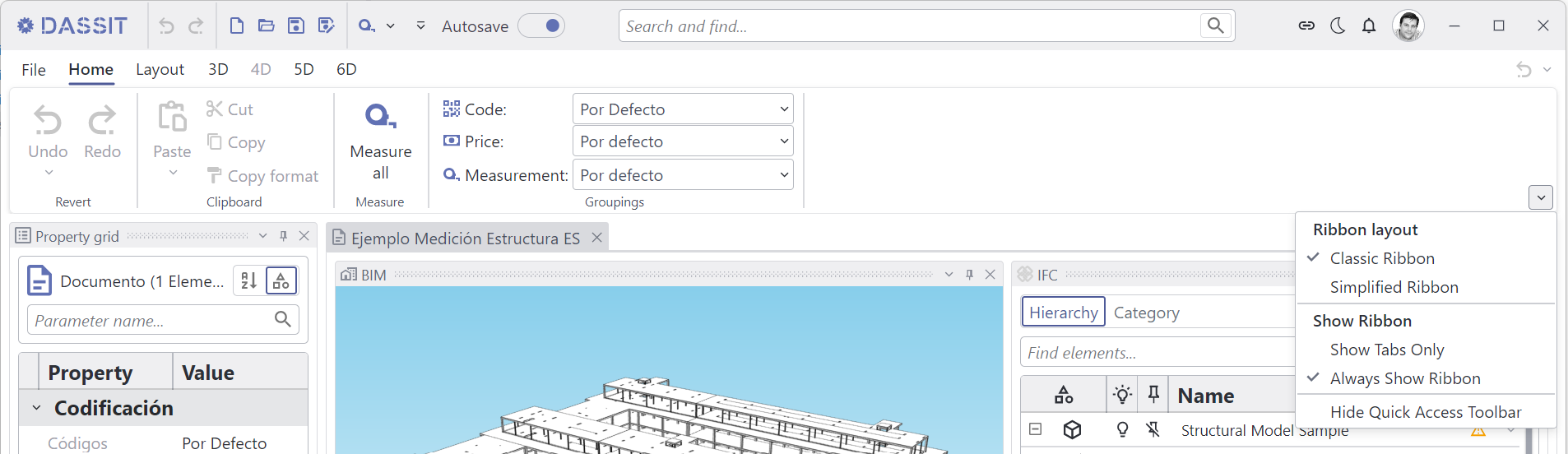
Layout drop-down button for the ribbon control
Each Tab contains all related commands to a same topic. In DASSIT™, Tabs are named according to the BIM dimension they are related to
| File | Home | Layout | 3D | 4D | 5D | 6D |
|---|
Be aware that the FILE Tab navigates to the Backstage
The ribbon is a very smart UI control that automaticly collapse groups of controls when there is no room available
Above, Ribbon UI control dynamicaly collapsing groups of commands as the available space shrinks
Context Menu
Section titled “Context Menu”The UI control does not contain a context menu