
Main View
Summary
Section titled “Summary”When not in Backstage mode, this is the main UI control where you interact with
Description
Section titled “Description”Main view in DASSIT™ is divided in four horizontal strips
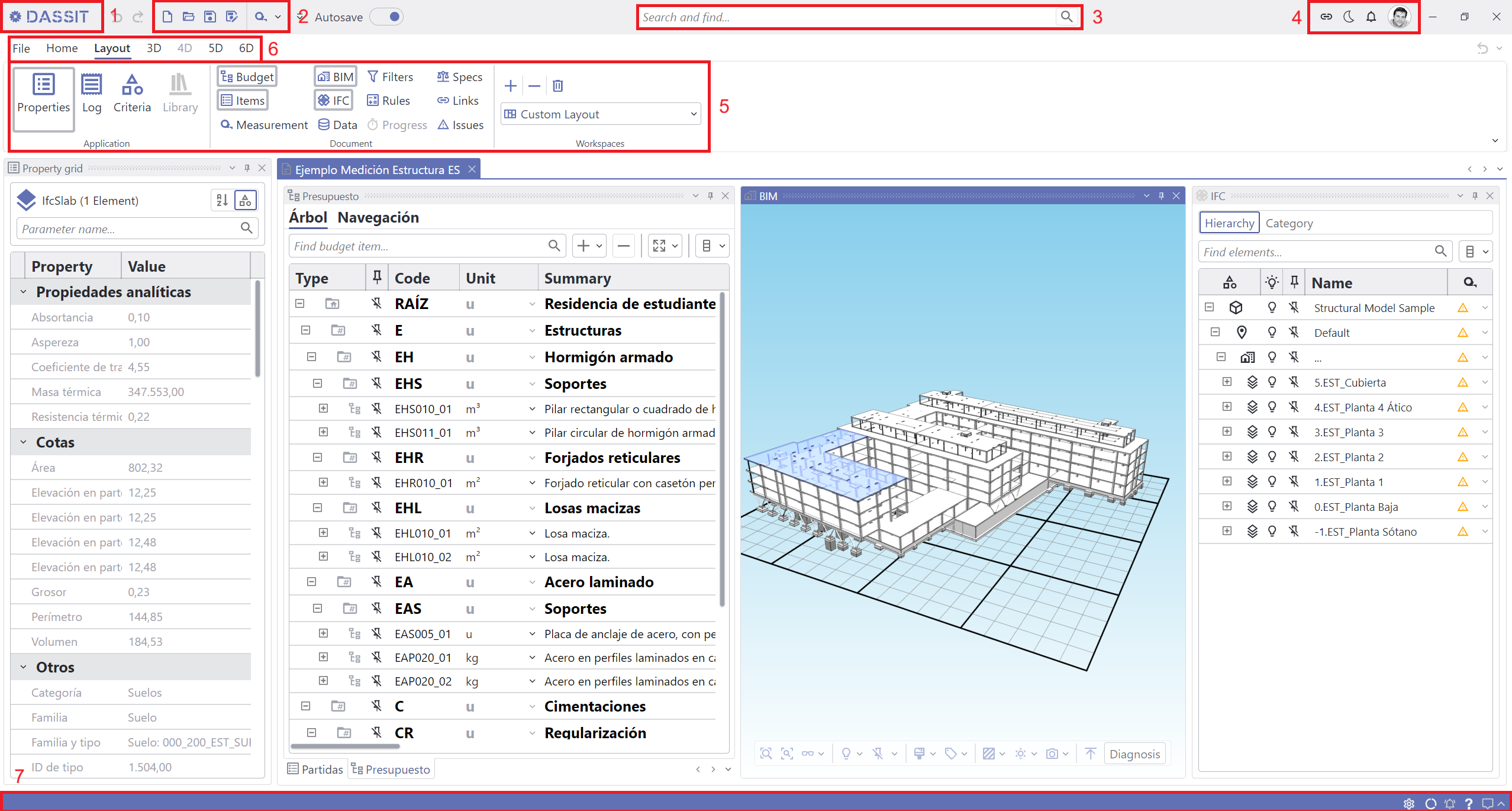
DASSIT's main View
The title bar holds the application title and version (1) on hover, some quick access commands (2), a search box (3) to quickly locate anything in the application or the open documents, and some useful shortcuts (4) that can also be found in the Backstage
This part contains all the commands (5) that can be used in DASSIT™
Just like in any other modern application, ribbon menu is made of different tabs (6) that contain related commands; these commands are again groupped for better clarity
The available tabs in DASSIT™ correspond to the different BIM dimensions that the application is capable to work with:
- File: To return to the Backstage
- Home: With the most common commands for quick usage
- 3D: Geometry related commands
- 4D: Scheduling and On-site progress related commands (not yet available)
- 5D: Cost related commands
- 6D: Sustainability related commands
Here you can dock Application-level and Document-level UI controls, and save the layouts for later usage
The status bar (7) is where the application communicates with you, providing useful information about ongoing task, or expected user actions
Context Menu
Section titled “Context Menu”The UI control does not contain a context menu